
Odoo CRM Workflow: Default Process and How to Customize It
Odoo CRM Workflow: Default Process and How to Customize It
 Bhargav A
Every business follows a different sales process, but managing leads, tracking opportunities, and following up with potential customers are common requirements.
Odoo CRM provides standard features to manage these activities in one place. Businesses can use its default workflow to organize leads, move opportunities through sales stages, schedule activities, and monitor sales performance.
However, when the standard workflow does not fully match a company’s requirements, Odoo CRM can be configured or customized to support its specific business processes.
In this guide, we will explore the default Odoo CRM workflow, its key features, and how businesses can customize it according to their requirements.
Understanding the Default Odoo CRM Workflow
The default flow looks like this:
Lead → Opportunity → Pipeline Stages → Activities → Won or Lost → Reports
Every deal passes through the same pattern, which is what gives managers a clear view of the whole pipeline.
Step 1: Create a Lead
A lead is a possible customer who has not been qualified yet. You can create one manually in the CRM app, or let it arrive from a website form, an email alias or an import. Store the contact name, company, email, phone, salesperson, sales team and lead source.
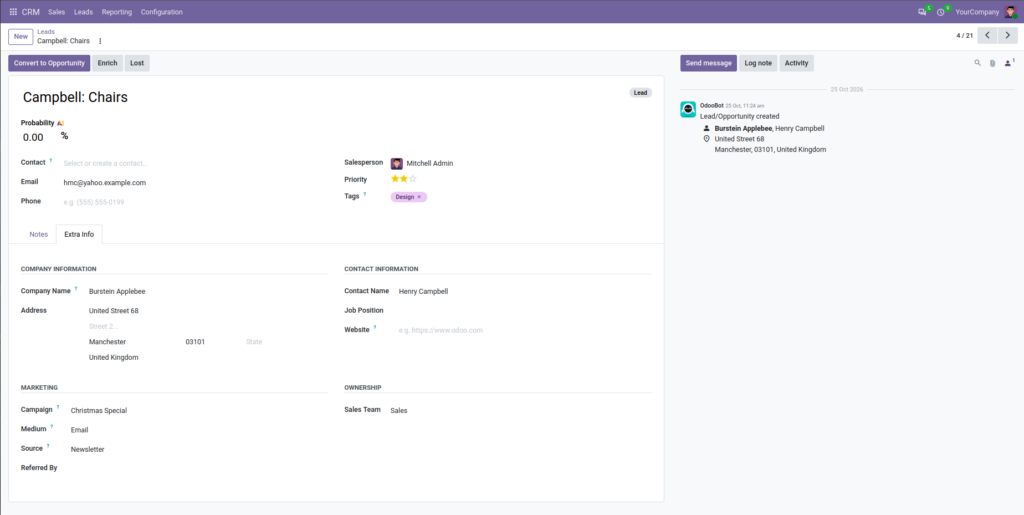
Step 2: Convert the Lead into an Opportunity
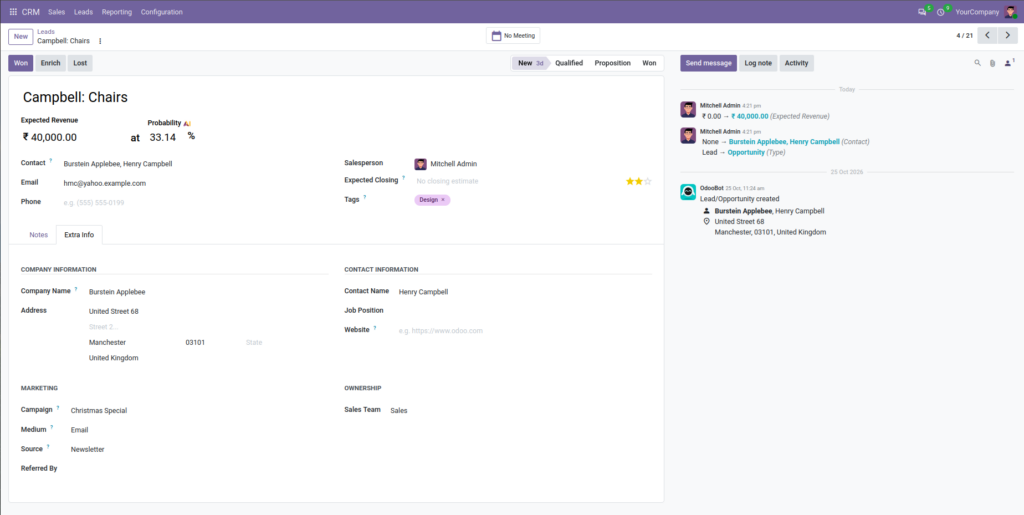
When a lead has a real requirement, budget and timeline, convert it into an opportunity. This keeps early enquiries separate from deals your team is actively working.
Step 3: Move the Opportunity Through the Pipeline
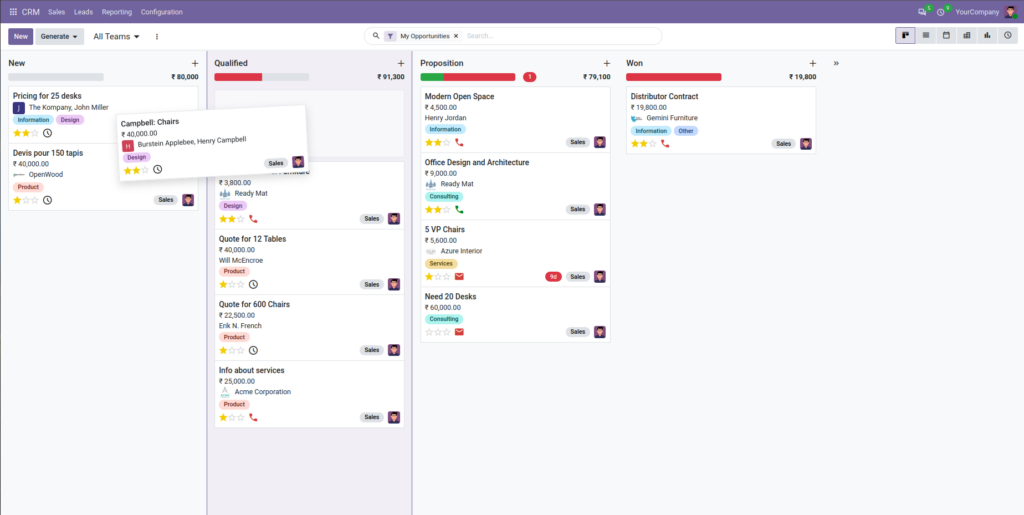
The pipeline is a Kanban board. Each card is an opportunity, and each column is a stage. The default stages are New, Qualified, Proposition and Won. Salespeople drag cards from one stage to the next as the deal progresses. Odoo 20 also adds a pipeline switcher, so managers can move between different teams’ pipelines from a dropdown.
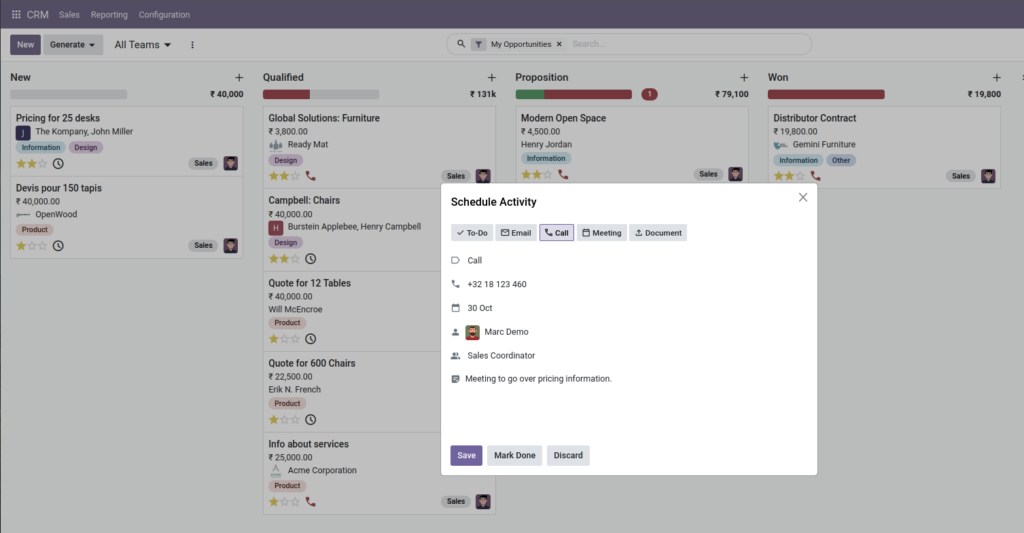
Step 4: Schedule Activities
Every opportunity should have a next action. From the card you can schedule a call, email, meeting or to-do with a due date. Overdue activities are highlighted, so follow-ups are not forgotten. Want these reminders to trigger on their own? Read our guide on Odoo CRM automation for lead management and follow-ups.
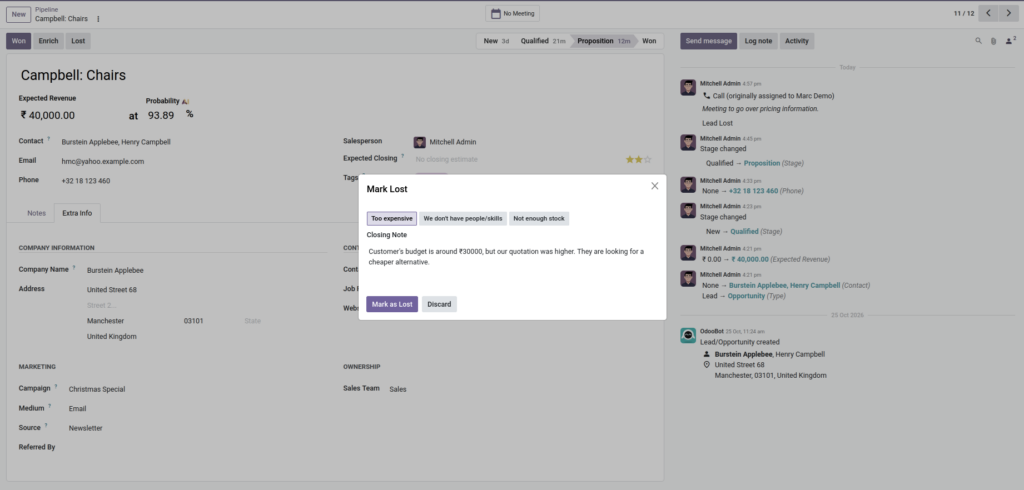
Step 5: Mark the Deal Won or Lost
When the customer confirms, mark the opportunity as Won. If not, mark it Lost and record the lost reason. Over time, these reasons show you why deals fail, such as price, timing or competition.
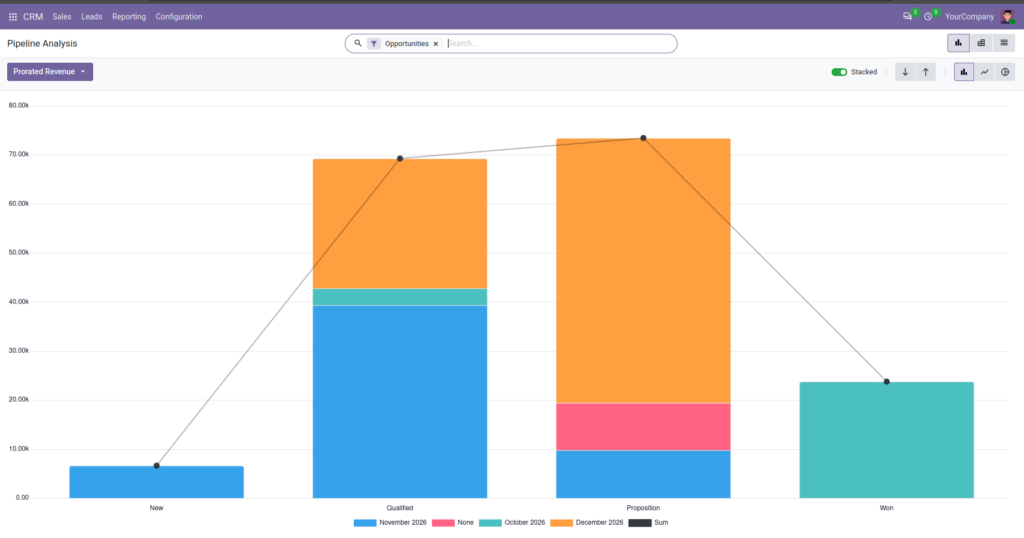
Step 6: Review the Reports
The CRM reporting views show opportunities by stage, expected revenue, win rate and performance per salesperson or team. This is where the data you entered in Steps 1 to 5 turns into decisions.
That is the complete default flow. It works well as a starting point, but most businesses outgrow it quickly.
When Is the Default Odoo CRM Process Not Enough?
Odoo CRM’s standard pipeline works well for many sales teams. However, businesses with specialized sales processes may need additional checks, approvals, or customer information that the default setup does not fully support.
Consider an industrial equipment supplier selling machinery to other businesses. Before sending a quotation, the company may need to:
- Verify equipment specifications with the technical team.
- Confirm installation requirements.
- Obtain manager approval for discounts above a defined limit.
- Complete a final review before sending the quotation.
Odoo CRM can track opportunities, activities, and sales stages. However, a standard pipeline may not enforce these business-specific checks or require them to happen in a particular order. When a deal must pass through mandatory reviews before progressing, additional configuration or customization may be needed.
What Can You Customize in Odoo CRM?
Not every change requires a developer. Pipeline stages and basic fields can often be configured without code, while strict approval rules, specialized dashboards, and complex integrations may require additional development.
| Requirement | Example | Possible approach |
|---|---|---|
| Pipeline stages | Add a “Technical Review” stage | Standard settings, no code |
| Custom fields | Capture equipment specifications and installation requirements | Settings or Odoo Studio (Enterprise) or custom development |
| Approval controls | Require approval for discounts above a defined limit | Automated actions or custom development |
| Reports | Track deals awaiting technical review | Filters in standard reports; tailored dashboards need development |
| Integrations | Connect CRM with a website or another business system | Existing connectors or custom integration |
Before vs. After: A Customized Sales Workflow
Example standard flow: New → Qualified → Proposition → Won/Lost
Customized flow for the equipment supplier: New → Qualified → Technical Review → Quotation Approval → Proposal Sent → Won/Lost
The customized workflow can include fields for equipment specifications and installation requirements, an approval control for high discounts, and a report showing which deals are waiting for review.
This gives the sales team a clearer process and helps managers identify opportunities delayed by technical checks or pending approvals.
When a requirement goes beyond standard settings, custom development follows a clear process:
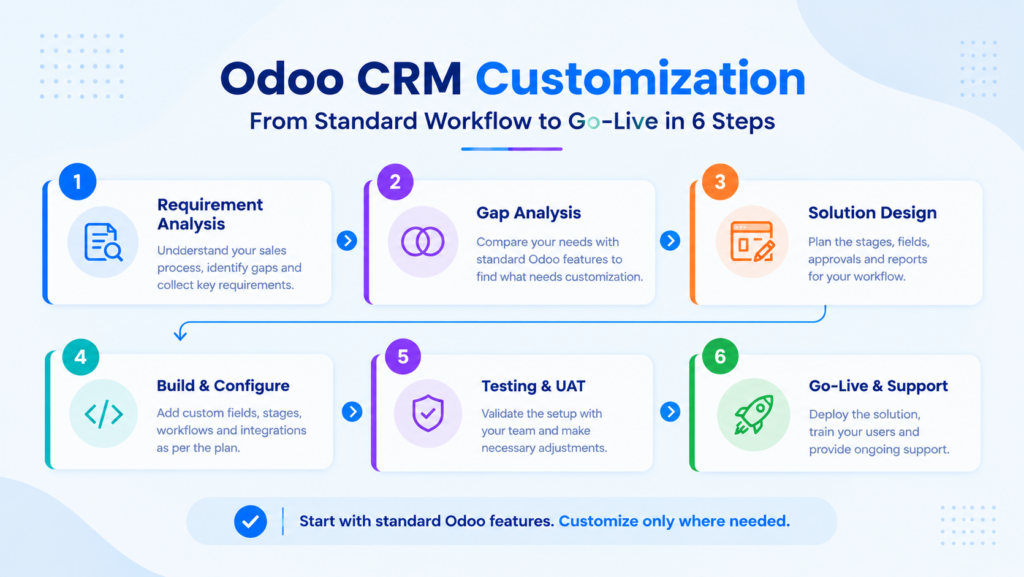
Keep Customization Practical
Start with Odoo’s standard features and identify the exact gap in your sales process. Add stages and fields only when they serve a clear purpose, and use custom development when existing settings cannot meet the requirement. Unnecessary fields and stages can make the CRM harder to maintain and use.
Customize Odoo CRM with Banas Tech
Every business has its own sales process, and your CRM should support the way your team works. Banas Tech helps businesses evaluate their requirements, configure standard Odoo features, and develop custom workflows when needed.
Explore our Odoo Implementation, Odoo Development, and Odoo CRM Integration services to build a CRM workflow that fits your business.
Ready to improve your sales process? Contact Banas Tech to discuss your Odoo CRM requirements.